





Why is my Cat6 Ethernet Cable not reaching 1Gbps speeds? Complete Guide


Is your Cat6 Ethernet Cable not reaching 1Gbps: Let’s Discuss it…
We’ve all been there. You’ve upgraded your internet plan, bought a shiny new router, and crawled under your desk to wire up your PC with a Cat6 cable, expecting those glorious Gigabit speeds. You run a speed test, and… 95 Mbps. Or maybe 200 Mbps. It’s frustrating. Technically, Cat6 is rated for up to 10Gbps at short distances, so hitting 1Gbps (1,000 Mbps) should be a walk in the park. If your “information superhighway” feels more like a school zone, don’t toss the cable in the bin just yet.
As someone who has spent years crimping cables and debugging home networks, I can tell you that the “bottleneck” is rarely where you think it is. Let’s dive into why your Cat6 isn’t performing and how to fix it.
1. The “Hidden” Bottleneck: Hardware Limitations
Before we blame the copper wire, we have to look at what’s on either end of it. A cable is just a bridge; if the roads on either side are narrow, traffic will still stall.
The Fast Ethernet Trap
Check your devices. Some older laptops, budget smart TVs, and even modern “smart home” hubs use Fast Ethernet (10/100) ports. If your laptop from 2015 only has a 10/100 port, it physically cannot process more than 100Mbps, even if you plug it into a NASA-grade fiber line.
Router & Switch Ports
Not all ports on a router are created equal. Many “Gigabit” routers only have one or two Gigabit LAN ports, while the rest are capped at 100Mbps. Ensure you are plugged into a port labeled “Gigabit” or “10/100/1000.”
2. The Physical Integrity of the Cable
Cat6 cables are tougher than they look, but they aren’t invincible. The internal structure of a Cat6 cable involves four pairs of twisted copper wires.
The “Four-Wire” Problem
To achieve Gigabit speeds, an Ethernet cable must use all eight internal wires (four pairs). If even one of those tiny copper strands is broken or wasn’t crimped properly into the RJ45 connector, the connection will “negotiate” down to 100Mbps. 100Mbps only requires two pairs (four wires) to function. If your speed is stuck exactly around 90-95Mbps, this is almost certainly your culprit.
Kinks and Sharp Bends
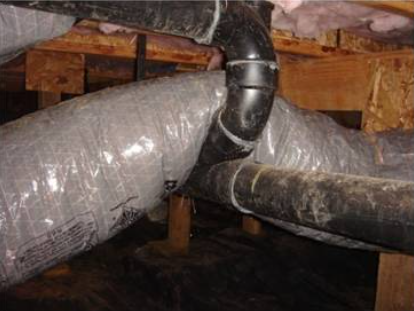
Ethernet sends data via electrical pulses. If you’ve stepped on your cable, pinched it in a doorway, or bent it at a sharp 90-degree angle to get it around a corner, you’ve likely increased crosstalk or changed the impedance of the wire. This forces the hardware to slow down the speed to maintain a stable connection.
3. Interference: The Silent Speed Killer
Cat6 is shielded better than Cat5e, but it isn’t magic. If you’ve run your Ethernet cable parallel to high-voltage electrical lines (like the ones behind your fridge or inside your walls), you’re going to experience Electromagnetic Interference (EMI).
Data packets get corrupted by the electrical noise, leading to “retries.” Your computer spends so much time asking for the data to be resent that your effective speed tanks.
The Fix: Always cross electrical wires at a 90-degree angle. Never run them side-by-side for long distances unless you’re using Shielded Twisted Pair (STP) cables.
4. Software and Driver Issues
Sometimes the “break” isn’t physical—it’s digital.
- Network Card Drivers: Outdated NIC (Network Interface Card) drivers can limit performance. Visit your motherboard manufacturer’s website and grab the latest LAN drivers.
- Auto-Negotiation Settings: In your Windows Device Manager, your network adapter might be set to “100Mbps Full Duplex” instead of “Auto Negotiation” or “1.0 Gbps Full Duplex.”
- Energy Efficient Ethernet (EEE): This is a “green” feature that saves power by powering down the port. Ironically, it often throttles speeds. Try disabling it in your adapter settings.
5. The “Fake” Cat6 Cable
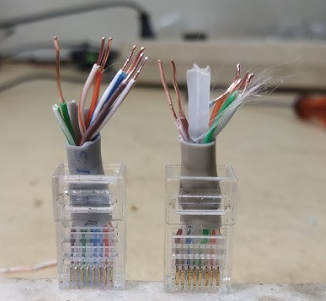
In my experience auditing home setups, I’ve found a staggering amount of Copper Clad Aluminum (CCA) cables being sold as “High-Speed Cat6.”
What is CCA? It’s an aluminum wire dipped in a thin layer of copper. It’s cheaper to make, but it has much higher resistance and is incredibly brittle. Over long distances, CCA will almost never hit true Gigabit speeds reliably.
Pro Tip: Real Cat6 should be 100% Oxygen-Free Copper (OFC). If the cable feels unusually light or the “Cat6” text on the jacket looks like it was printed in a basement, you might have a fake.
Troubleshooting Checklist: From Zero to Gigabit

If you’re ready to fix this right now, follow this sequence:
- Swap the Cable: Try a different, shorter Cat6 cable. If the speed jumps up, the old cable was damaged.
- Check the Link Lights: Look at the port on your router. Green usually means Gigabit; Amber/Orange often means 10/100.
- Test with Another Device: Plug in a different laptop. If it gets 1Gbps, the issue is your first computer’s settings or hardware.
- Bypass the Switch: If you’re using an unmanaged switch, plug directly into the router to see if the switch is the bottleneck.
Conclusion
A Cat6 cable not reaching 1Gbps is usually a symptom of a “weak link” in the chain—be it a bad crimp, a 100Mbps port, or a cheap CCA wire. By isolating each component, you can usually find the culprit without spending a fortune.
Networking doesn’t have to be a dark art. Most of the time, it’s just about ensuring the physical path for your data is clean, solid, and built with quality copper.
