







PS5 LG OLED No Signal? 6 Effective Fixes for HDMI 2.1 Errors (2026)

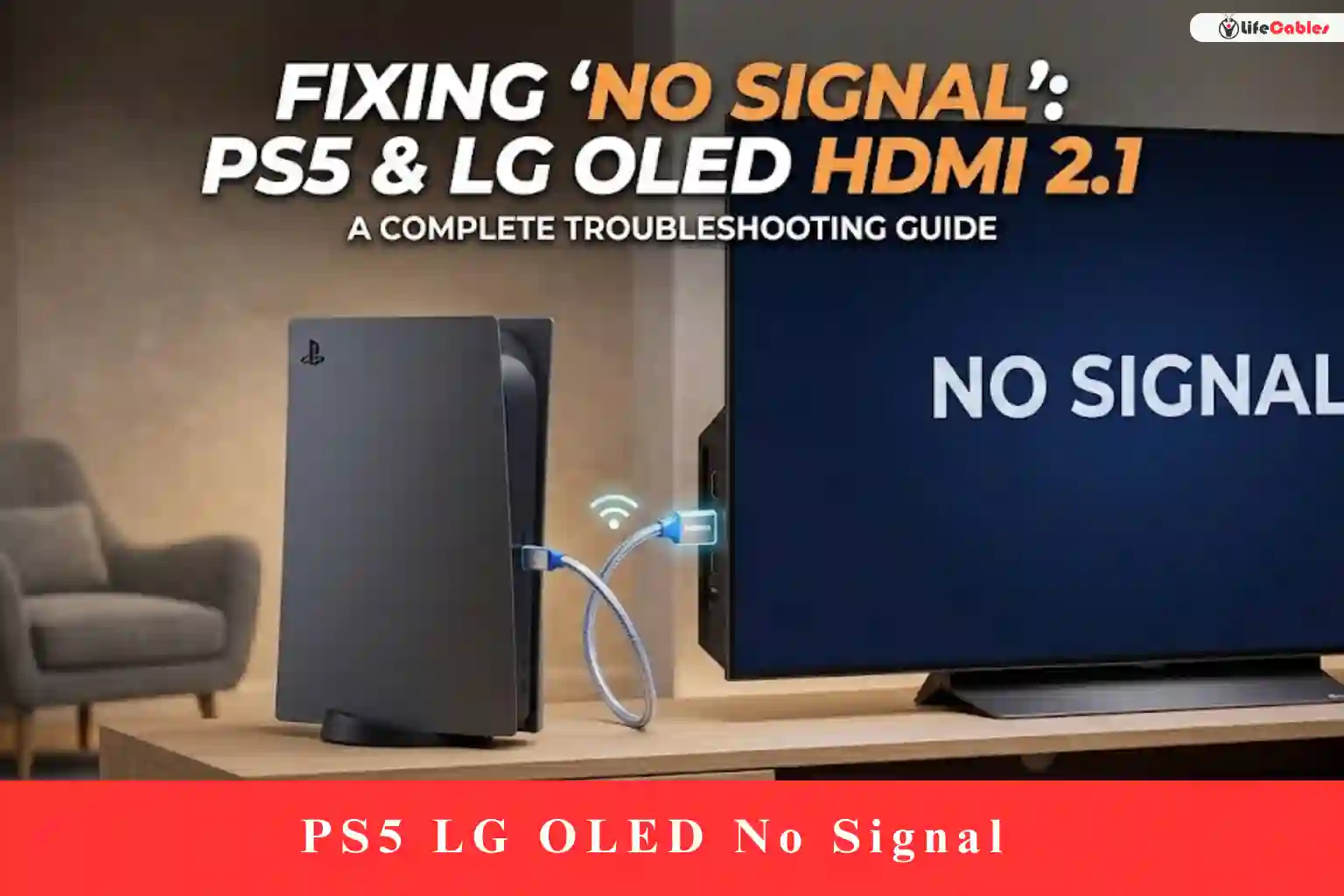
Troubleshooting HDMI 2.1 and Fixing PS5 lg OLED NO SIGNAL error: The Definitive Fix
There is a specific kind of heartbreak that occurs when you settle into your couch, fire up your PS5, and instead of the soaring PlayStation logo, you’re greeted by a cold, gray box on your LG OLED that reads: “No Signal.”
As an owner of both an LG C2 and a CX, I’ve been in those trenches. The LG OLED series (from the CX and C1 to the newer C4 and G4 models) are arguably the best gaming displays on the planet. But when you pair them with a PS5 using HDMI 2.1, you’re dealing with a massive amount of data—48Gbps of bandwidth, 4K resolution, 120Hz refresh rates, and HDR. When just one link in that chain flinches, the whole signal collapses.
If you’re staring at a black screen, don’t panic. You likely don’t have a broken console or a dead TV. You have a handshake error. Here is the step-by-step guide to fixing it.
1. The “Secret” Handshake: Resetting the Video Output
Most “No Signal” errors happen because the PS5 is trying to output a resolution or frequency (like 120Hz or VRR) that the TV isn’t ready to handshake with at that exact microsecond.
The Fix: Safe Mode Resolution Reset
- Turn off your PS5 completely (not Rest Mode).
- Press and hold the power button on the console. Keep holding it until you hear a second beep (about 7 seconds).
- Connect your DualSense controller via a USB cable and press the PS button.
- Select Option 2: Change Video Output.
- Select Change Resolution. The PS5 will restart.
- Once it reboots, select 1080p (just to get a signal). If the image appears, you know the hardware is fine, and we just need to calibrate the settings.
2. Check the “HDMI Deep Color” Settings
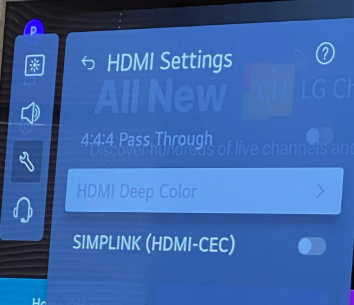
LG TVs have a feature called HDMI Ultra HD Deep Color. For HDMI 2.1 features like HDR and 120Hz to work, this must be on. However, sometimes the setting glitches during a firmware update.
- Go to: Settings > General > External Devices > HDMI Settings.
- Ensure HDMI Deep Color is set to 4K for the specific port your PS5 is plugged into.
- Pro Tip: If it’s already on, try toggling it OFF and then back ON. This often forces the TV to “re-recognize” the PS5’s 2.1 capabilities.
3. The Hardware Culprit: The HDMI 2.1 Cable
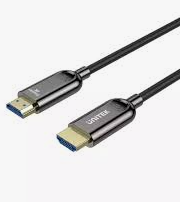
I cannot stress this enough: Not all HDMI cables are created equal. Even the one that came in the PS5 box can occasionally fail or be sensitive to interference.
If you are using an older “High Speed” cable from your PS4 days, it will not work for 4K/120Hz. You need a certified Ultra High Speed (48Gbps) cable.
Recommended Cables for LG OLED & PS5 (2026 Standards)
| Cable Brand | Best For | Why it Works |
| Highwings 8K/10K | Durability | Braided, handles 48Gbps effortlessly. |
| Zeskit Maya | Certification | Officially certified Ultra High Speed. |
| PowerA (Official) | Peace of Mind | Specifically licensed for PlayStation. |
The “Snugness” Test: LG OLED ports are notoriously tight. Ensure the cable is pushed in until you feel a definitive “click.” A gap of even a millimeter can cause a “No Signal” loop.
4. Disable HDCP (The Ultimate “Get Out of Jail Free” Card)
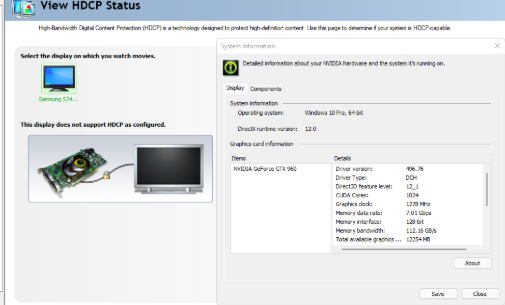
HDCP (High-bandwidth Digital Content Protection) is the “copy protection” that prevents you from recording movies. Sometimes, the handshake between the PS5 and LG’s WebOS fails because of HDCP.
- If you can get into the PS5 menu (using the Safe Mode trick above), go to Settings > System > HDMI.
- Toggle Enable HDCP to OFF.
Note: You won’t be able to use Netflix or Disney+ on your PS5 while this is off, but it often fixes the “No Signal” error for gaming immediately.
5. The Power Cycle “Drain”
Modern electronics never really turn off; they stay in a “standby” state. Sometimes, the HDMI controller on the LG OLED gets “stuck.”
- Unplug both the TV and the PS5 from the wall outlet.
- Wait 60 seconds.
- While unplugged, hold the physical power button on the TV (usually under the LG logo) for 15 seconds to drain the capacitors.
- Plug everything back in. Power on the TV first, then the PS5.
6. Adjusting the 4K Video Transfer Rate
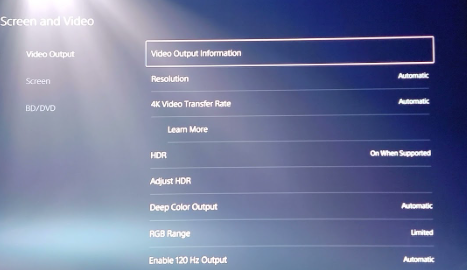
If your screen flickers or goes black intermittently, your HDMI 2.1 bandwidth might be hitting a “bottleneck.”
- Go to Settings > Screen and Video > Video Output.
- Find 4K Video Transfer Rate.
- Change it from “Automatic” to -1 or -2.
- This limits the chroma subsampling slightly (from 4:4:4 to 4:2:2), which reduces the strain on the cable without a noticeable loss in visual quality.
Final Thoughts: When to Call Sony
If you have tried three different certified cables, performed a factory reset on the LG OLED, and the PS5 still won’t show a signal in Safe Mode, you may be looking at a blown HDMI encoder chip on the PS5 or a physically damaged port. If the pins inside the PS5 HDMI port look bent or “pushed back,” it’s time for a repair.
Would you like me to walk you through the specific HDR calibration settings for the LG C-Series to make sure your whites aren’t “blown out” once you get that signal back?
