





Why does my 4K monitor flicker when using a 10ft HDMI cable?-2026 Complete Guide

Why Does My 4K Monitor Flicker When Using a 10ft HDMI Cable?
There is a specific kind of frustration reserved for the moment you finally set up your dream desk. You’ve got the 4K monitor, the high-end GPU, and a nice long 10ft HDMI cable to keep your PC tucked neatly away. You hit the power button, the desktop glows in beautiful Ultra-HD… and then it happens.
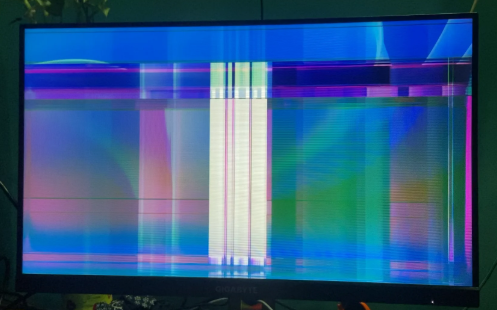
A black screen for two seconds. A flash of “snow” or static. A rhythmic blinking that makes it impossible to work or game.
If your 4K monitor is flickering specifically when using a longer cable, you aren’t alone, and your monitor likely isn’t broken. You’ve just run head-first into the “Digital Cliff.”
The 4K Reality: It’s All About Bandwidth
To understand why a 10ft cable is causing issues, we have to look at the sheer amount of data traveling through that wire.
A standard 4K signal at 60Hz requires roughly 18Gbps (Gigabits per second) of data. If you’re pushing 4K at 120Hz or using HDR (High Dynamic Range), that requirement jumps to 48Gbps.
In shorter cables (3ft to 6ft), the copper wire can carry this data easily. But as the cable gets longer, the electrical signal begins to degrade. This is known as attenuation. By the time the signal reaches the 10ft mark, the “peaks and valleys” of the digital data (the 1s and 0s) become rounded and messy. Your monitor tries to interpret this “fuzzy” data, fails, and the image drops out—resulting in that annoying flicker.
Why 10 Feet is the “Danger Zone”
You might be thinking, “10 feet isn’t even that long!” In the world of analog TV, it wasn’t. But HDMI is high-frequency digital signaling.
Most “standard” HDMI cables are passive. They rely purely on the strength of the source device (your PC or console) to push electricity to the end of the wire. Many HDMI ports on laptops or mid-range GPUs don’t provide quite enough voltage to maintain a perfect 4K/60Hz signal over 10 feet of mediocre copper.
The Red Flags of a Bad Cable:
- The Blackout: The screen goes black for 1–3 seconds and then returns.
- Sparkles: Tiny white pixels (interference) dancing across dark areas of the screen.
- Resolution Downgrading: Your PC suddenly forces you into 1080p and won’t let you select 4K.
- HDCP Errors: Your screen flickers only when you try to open Netflix or Disney+.
How to Stop the Flicker
As someone who has spent years troubleshooting AV setups, I’ve learned that throwing money at “Gold-Plated” marketing is a waste. Instead, focus on these technical standards.
1. Check the Rating (Look for the QR Code)
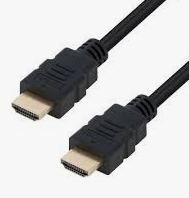
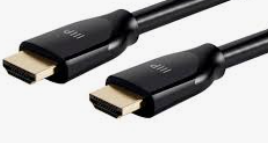
If you bought a “High Speed” HDMI cable, it might only be rated for 10.2Gbps—which is insufficient for stable 4K/60Hz. You need a cable labeled “Premium High Speed” (18Gbps) or, better yet, “Ultra High Speed” (48Gbps).
Pro Tip: Genuine cables often come with a holographic “HDMI Certification” sticker on the box that you can scan with an app. If it doesn’t have this, it’s likely a generic cable that wasn’t tested for 10ft reliability.
2. Move Away from Power Bricks
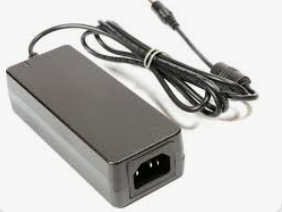
Copper cables are susceptible to Electromagnetic Interference (EMI). If your 10ft HDMI cables is bundled together with your monitor’s power brick or a tangle of AC power cords, the “noise” from the electricity can bleed into the HDMI signal.
- The Fix: Try “air-gapping” your HDMI cable. Let it run solo, away from power wires, and see if the flickering stops.
3. Consider an “Active” HDMI Cable
If you absolutely need 10 feet or more, a Passive cable might not cut it. An Active HDMI cable has a small chip inside the connector that boosts the signal using power from the HDMI port.
- Note: Active cables are unidirectional. One end must go into the PC, and the other must go into the monitor. Plug it in backward, and you’ll get no signal at all.
4. Lower the Refresh Rate (The Temporary Fix)
If you need to finish a project and can’t run to the store, try this:
- Go to Display Settings > Advanced Display.
- Lower your Refresh Rate from 60Hz to 30Hz. This halves the bandwidth requirement, often allowing a low-quality 10ft cable to maintain a stable (though less smooth) image.
The Ultimate Solution: Optical HDMI
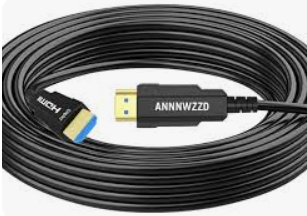
If you are running a high-end 4K/144Hz monitor, even the best copper 10ft cable can be hit-or-miss. This is where Fiber Optic HDMI cables come in. They convert the electrical signal into light. Light doesn’t suffer from signal decay over 10 feet, and it’s immune to electrical interference. They are more expensive, but they are the “one and done” solution for 4K flickering.
Final Checklist Before You Buy a New Cable
Before clicking “Buy” on Amazon, do these three things:
- Swap Ports: Try a different HDMI port on your monitor. Sometimes one port is HDMI 2.0 while the other is only 1.4.
- Update Drivers: Ensure your GPU drivers are current; occasionally, flickering is a handshake software bug.
- Firmware: Check if your monitor has a firmware update available (common with brands like LG, Samsung, and Dell).
The Verdict: Your 10ft cable is likely failing because it’s a “passive” copper wire struggling to maintain the massive bandwidth of 4K. Switching to a Certified Premium High Speed cable or an Active/Fiber cable will almost always solve the problem.